On this page
- Step 1. Confirm WooCommerce and Euqin are active
- Step 2. Create one menu group
- Step 3. Check your serving options
- Step 4. Set delivery and pickup
- Step 5. Set your lead time
- Step 6. Nominate your terms and privacy pages
- Step 7. Publish a page with the ordering wizard
- Step 8. Send yourself a test request
- What you should see
- What to do next
- Troubleshooting
Euqin is ready to take an order once one menu group exists, your serving options are checked, and your lead time is set. Eight steps cover all of it, and the whole pass takes about fifteen minutes. Finish by sending yourself a test request and opening it in WooCommerce.
Work through the steps in order, because each one depends on the last.
Step 1. Confirm WooCommerce and Euqin are active
Open Plugins → Installed Plugins and confirm that WooCommerce and Euqin are both active. A Euqin item in your admin sidebar is the proof. If the item is missing, the installation guide explains why.
Step 2. Create one menu group
Go to Euqin → Menu Builder and build a single group from a WooCommerce category you already have. Name the group the way a customer would say it, for example Starters or Platters. One group is enough for a first pass, and the rest of your menu can wait.
Step 3. Check your serving options
Go to Euqin → Order Setup, open the Serving Style tab, and read the three serving options that ship by default. Rename anything your kitchen calls by another name, and delete anything you do not offer. Each option carries its own fee and its own tax class.
Step 4. Set delivery and pickup
Go to Euqin → Delivery & Pickup, set one delivery fee, and enter the postcodes you serve. Turning delivery off is fine if you only do pickup. Then decide whether a request from outside your postcodes is stopped or allowed through. Either way, the customer sees your own message instead of a failed order.
Step 5. Set your lead time
Go to Euqin → Lead Time and enter your normal notice and the minimum notice you will accept, both in hours. When a customer picks a date that is urgent or too soon to place, they see your urgent-contact number rather than a silent rejection.
Step 6. Nominate your terms and privacy pages
Go to Euqin → Settings and choose your terms page and your privacy policy page. A customer must accept your terms before a request is sent, so both pages have to exist first.
Step 7. Publish a page with the ordering wizard
Create a new page, add the Euqin ordering wizard shortcode, and publish it. Any theme and any page builder will render it. Name the page something a customer would click, for example Order catering.
[euqin_event_planner]
Step 8. Send yourself a test request
Open your new page in a private browser window and order the way a customer would. Choose a date, a guest count, one dish and a serving option, then send the request. Use your own email address so the confirmation arrives somewhere you can read it.
What you should see
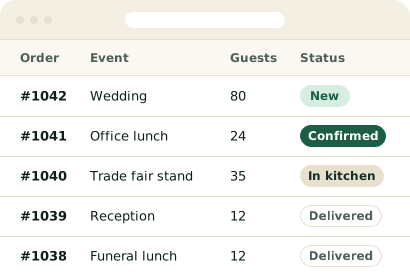
Two things arrive. A new order appears in WooCommerce → Orders carrying the event date and the guest count, and a confirmation email lands in the inbox you used. Opening the order shows the allergy notes and the serving option beside the dish list.
What to do next
Your first pass is finished, and building out the rest of your menu is the next job. The menu groups guide covers groups built from a category, groups built from individually chosen products, and minimum quantities per group.
Troubleshooting
The wizard does not appear on the page.
The shortcode is missing or misspelled. Edit the page and check it against the shortcode printed in step 7.
No confirmation email arrives.
WordPress email delivery is failing, which affects every plugin on the site rather than Euqin alone. Most hosts recommend an SMTP plugin, and the order itself still appears in WooCommerce → Orders.
Something else happens.
Open a support ticket with your WordPress version, your PHP version and what you saw on screen. A reply arrives within 24 hours.
- Step 1. Confirm WooCommerce and Euqin are active
- Step 2. Create one menu group
- Step 3. Check your serving options
- Step 4. Set delivery and pickup
- Step 5. Set your lead time
- Step 6. Nominate your terms and privacy pages
- Step 7. Publish a page with the ordering wizard
- Step 8. Send yourself a test request
- What you should see
- What to do next
- Troubleshooting
Cannot find what you need?
Open a support ticket and a reply arrives within 24 hours. Support is free on every plan, including the free plugin. Every question that arrives twice becomes a page in these documents.