Before you start
Any theme works. Euqin inherits your theme’s fonts and respects your page width. No page builder is required, and any page builder works.
Take a backup first. Installing anything on a live site without a backup is the actual risk, not Euqin.
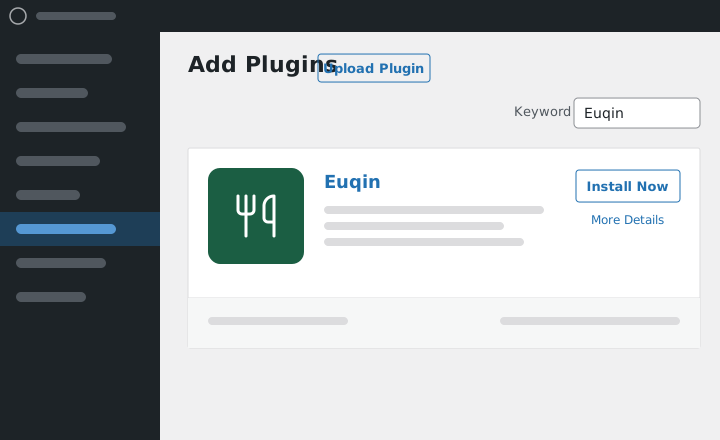
Install from the WordPress plugin directory
In your WordPress admin, go to Plugins → Add New.
Click Install Now, then Activate.
Install from a ZIP file
Use this method if you have downloaded the plugin file rather than installing from the directory.
Go to Plugins → Add New → Upload Plugin.
Choose the plugin ZIP file and click Install Now.
What you should see
After activation, a Euqin item appears in your admin sidebar with these screens.
| Screen | What it is for |
|---|
| Dashboard | Where every screen is listed, with its status |
|---|
| Menu Builder | Choose which dishes appear in the ordering wizard. Group them into sections like Starters or Desserts. |
|---|
| Order Setup | Set up your event types and serving styles |
|---|
| Delivery & Pickup | Set what delivery and pickup cost. Limit your delivery area by postcode. |
|---|
| Kitchen Printout | Choose what the kitchen ticket shows |
|---|
| Lead Time | Set how much time you need before an event. Flag urgent requests so you can act fast. |
|---|
| Design | Set the colors and corner radius customers see in the ordering wizard. |
|---|
| Settings | Your business details, shop page, and data tools |
|---|
| Add-ons | What Euqin Pro adds |
|---|
If the Euqin menu is not there, WooCommerce is almost certainly not active. Check Plugins → Installed Plugins first.
Installing Euqin Pro
Euqin Pro is a separate plugin, not an unlock. The free plugin does not contain the paid modules at all, so nothing switches on when a license key is entered. The Pro plugin has to be installed alongside the free one.
Download Euqin Pro from the email you received after purchase.
Go to Plugins → Add New → Upload Plugin and upload it.
Activate it, and enter your license key when prompted.
Keep the free plugin installed and active. Euqin Pro extends it rather than replacing it.
What to do next
Troubleshooting
WooCommerce is not active. Activate WooCommerce, then reload the admin.
Your host is running PHP older than 8.0. Most hosts let you change the PHP version from the hosting control panel. If yours does not, ask their support to move you to 8.0 or newer.
The shortcode is missing or misspelled. The guide on where to put the ordering wizard covers every placement.
Open a support ticket with your WordPress version, your PHP version and what you saw on screen. A reply arrives within 24 hours.